Globus
Globus is a service that enables high-performance and convenient data transfer and sharing of large amounts of data.
Using Globus on Cirrus
There are two different Globus Collections (formerly known as an endpoint) that link to Cirrus file systems:
| Collection name | Cirrus file system |
|---|---|
| CephFS | /home |
| NAIDIN | /epccfs |
A full step-by-step guide on transferring data to/from Cirrus is provided below.
Step-by-step example
Setting up Cirrus file systems
- Navigate to https://app.globus.org.
- Log in with your Globus identity (this could be a globusid.org or other identity).
- In File Manager, use the search tool to search for the relevant collection (i.e. "CephFS" or "NAIDIN"). Select it.
- In the transfer pane, you are told that Authentication/Consent is required. Click Continue.
- Click on the EPCC SAFE (safe.epcc.ed.ac.uk) link.
- Select the correct User account (if you have more than one). Click Accept.
- Now confirm your Globus credentials. Click Allow.
- The top-level Cirrus directory will be shown (i.e.
/homeor/epccfs). - Navigate to the directory you want to transfer data to/from.
Setting up the other end of the transfer
Make sure you select two-panel view mode
The following instructions assume you have selected two-panel view mode.
Laptop
- If you wish to transfer data to/from your personal laptop or other device, click on the Collection Search in the right-hand panel
- Use the link to “Get Globus Connect Personal” to create a Collection for your local drive.
Other server with Globus Collection
If you wish to connect to another server, you will need to search for the Collection and authenticate
Transfer to JASMIN: UK data analysis facility for environmental science
A common use case fro Globus is to transfer data from Cirrus to the JASMIN data analysis facility. Please see the JASMIN Globus page for more information on how to transfer data to/from JASMIN using Gobus.
Setting up and initiating the transfer
Once you are connected to both the Source and Destination Collections, you can use the File Manager to select the files to be transferred, and then click the Start button to initiate the transfer
- A pop-up will appear once the Transfer request has been submitted successfully
- Clicking on the “View Details” will show the progress and final status of the transfer
Using a different Cirrus account
If you want to use Globus with a different account on Cirrus, you will have to go to Settings
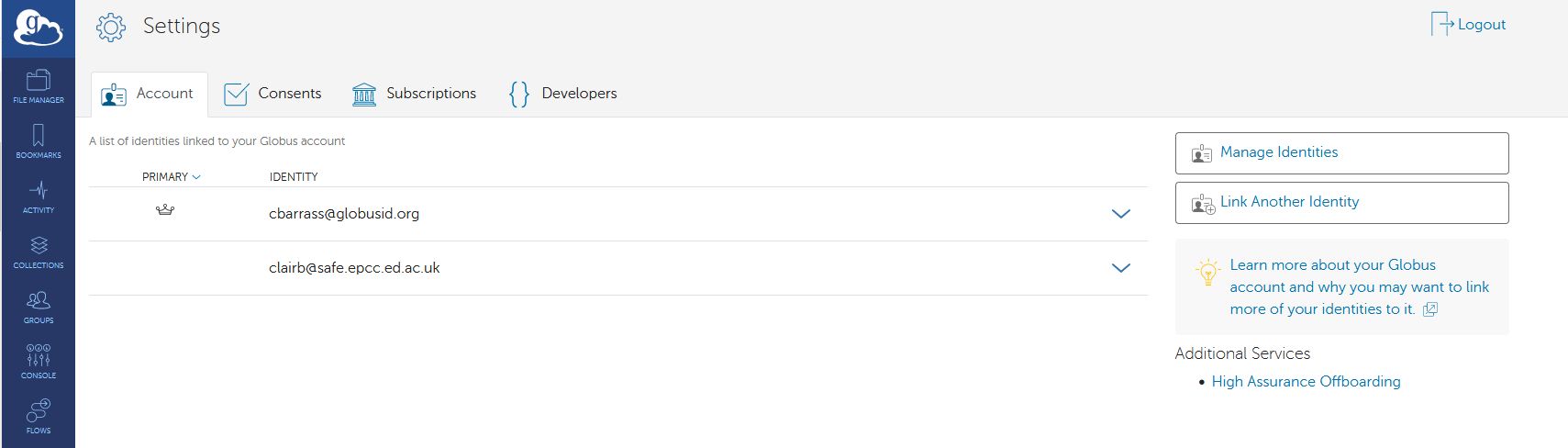
Manage Identities
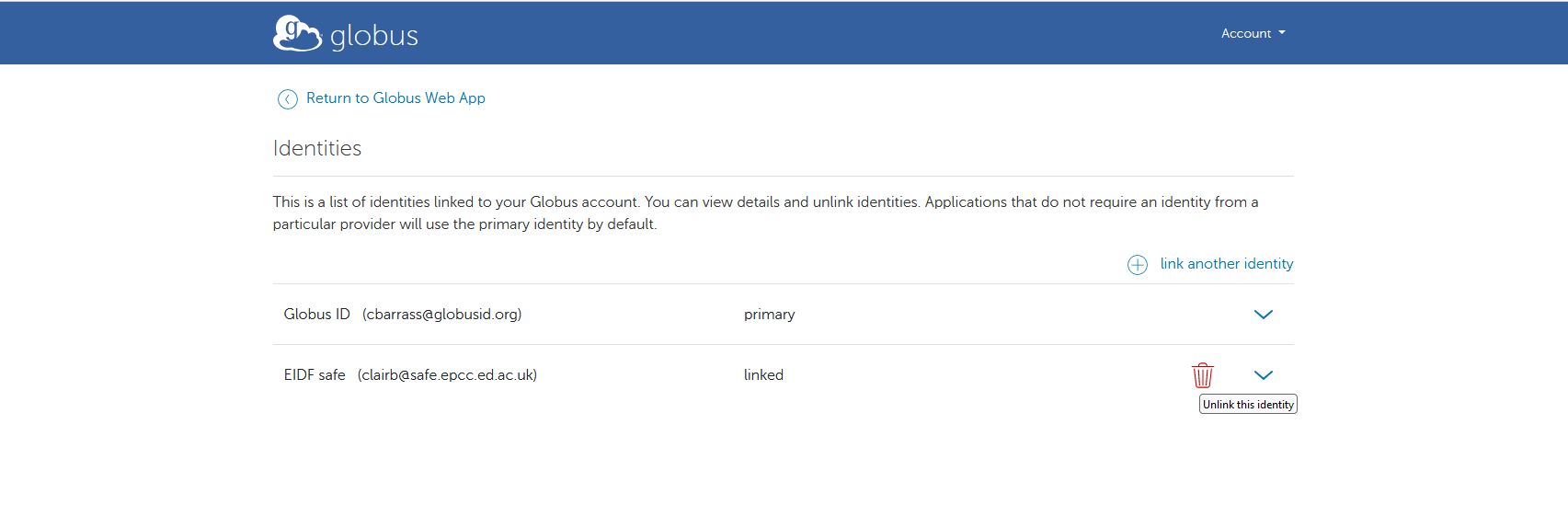
And Unlink the current SAFE identity, then repeat the link process with the other Cirrus account
Globus Command Line Interface (CLI)
The Globus CLI is also available on Cirrus for transferring data. You can make it available with
For more information on use, see the Globus CLI documentation.